Recoloring guide
How to change shirt color in a photo
Change the fabric color in an existing photo by selecting a source shade and restricting the edit to the shirt. The worked example below changes a red shirt to blue.
- Upload a photo. Choose your own image or try the prepared shirt example.
- Select the shirt. Sample the fabric color and paint a selection to protect skin and the background.
- Choose a color and download. Compare the folds and edges, refine the result, and export a PNG.

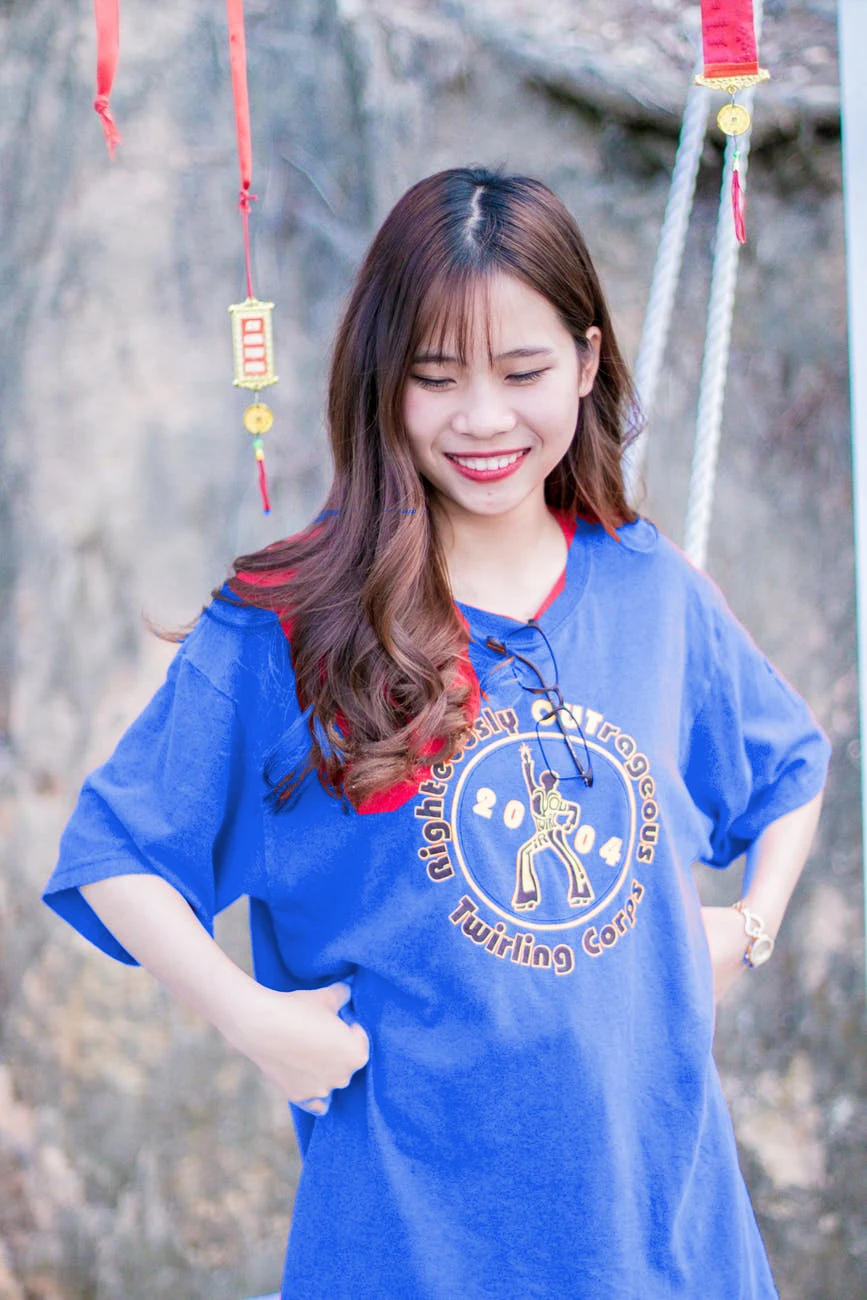
Photo by Chu Chup Hinh, via Wikimedia Commons, CC0. The edited version changes the shirt color. The photograph illustrates editing only; no endorsement is implied.

Choose a suitable shirt photo
Download the starting photo. A shirt that differs in color from skin and background is easier to isolate. Patterned fabric and fine hair overlapping the shirt need more manual work.

Sample the fabric color
Sample a midtone inside the shirt in Pick, then choose blue (#2563eb) as the replacement. In our example, Strength is 100, Tolerance 75, Edge softness 18, Color purity 20, Shade is on and Prime white first is off. Protect and Detail are off for this demonstration. These are example settings, not a preset for every photo.
Mask the shirt and protect nearby details
Use Select to paint inside the fabric, including sleeves, while keeping skin outside your selection. Use Erase for accidental overlap. Show the mask to inspect the boundary, then turn it off to judge the result. The sample link loads a prepared region mask limited to the saturated fabric in this photograph, so you can inspect and refine it. This is a prepared example, not automatic garment detection. For your own photo, paint the regions yourself.
Adjust the preview
Compare the fabric folds and shaded areas. Raise tolerance only if the old shirt color remains in intended regions; refine the mask if surrounding areas change. Lower purity if the new color looks too flat.
Inspect folds and export
Check the collar, sleeves, hair and skin at full size, then download the PNG. The export excludes comparison and mask overlays. The prepared mask intentionally leaves some fabric next to the hair unchanged, and fine edges can retain the source color; edit the boundary rather than assuming automatic perfect isolation.
Understand difficult color changes
A near-black or white shirt contains less useful hue information, and changing it to a saturated color may look artificial. This workflow changes pixels in an existing photo; it does not replace garments, generate fabric or simulate fit. For commercial concepts, read product color mockup guidance.
Try your own color replacement
Choose an image, replace a selected color, inspect the result, and download a PNG.
Open the image color changerTroubleshoot recolor settings · Formats and export help · All recoloring guides